Map Functions (Lambdas)
This page is not about the Excel MAP function. It's about functions for playing with visual "maps" in Excel. I had no need for any of these functions until I started doing "map" exercises as part of the Excel Esports competitions. I have seen many of the pro competitors using special functions and macros, so I decided to go ahead and share some of the functions that I've developed.
To be clear, we're talking about dealing with things like this "Lizard Island," an example inspired by one of Harry Seider's training cases.
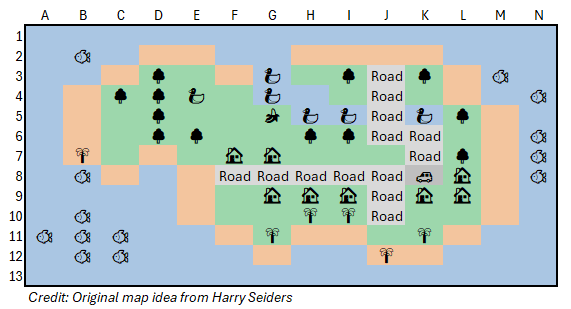
Use these at your own risk! My methods and functions may not be the fastest or most efficient. My first goal is to find something that works. My second goal is to generalize a lambda so it could be used for other problems. My third goal is to make it shareable and understandable. A technique may be cool and fast, but if I don't fully understand it, I would never think to use it to solve a problem with a time crunch.
Before proceeding, a big thank you to Harry Seider, Harry Gross, and the other map makers. Although these maps can be some of the more challenging problems (and may cause a lot of groans from competitors), I think they are really fun.
Map Functions on This Page
These functions rely heavily on other Address Functions. They are also designed to be non-volatile. That is partly because some may involve significant recursion and iteration, and even though they may take a long time to run initially, we want to avoid slowing down the workbook if possible.
- SelectCellsByBackgroundColor (VBA MACRO) Does what the name suggests.
- Distance("A1","B3",[move_type],[row_scale],[col_scale]) :: Returns the distance between the from and to addresses using Manhattan, Chebyshev, or Euclidean distance.
- DistanceFrom(map_array,valid_value,[allow_diagonals],...) :: Calculates distances from each location in map_array to locations within the map containing the valid_value.
- GetAdjAddresses(location,map_array,cols) :: Similar to OFFSET but based on addresses instead of references, and is not volatile.
- ArrowEffect() :: A big list of unicode characters and their row|col effects.
- PathByDirection(start_address,[direction],[num],...) :: This is for the "Go 3 spaces in this direction" type of challenge.
- PathViewable(start_address,directions,distance,map_range,[stop_values]) :: Return addresses that can be "seen" from the current address.
VBA Macro: Select Cells by Background Color
This is a HUGE time saver in many Excel Esport cases! I bet most of the pros have a macro like this. No, this isn't a LAMBDA function, but this seemed like a good place to share this macro. I call this macro using OARobot!
How to Use It!
Select Two Regions: FIRST, select the cell to use as the background color, then press CTRL as you select the map range.
How to do this without a macro: You can use the Ctrl+F (Find and Replace) feature in Excel to "Find by Format" - but the process is not fast.
Public Sub SelectCellsByBackgroundColor()
'------------------ Vertex42 ------------------------------
' Command Name: Select Cells with Same Background Color
' Description: First area is the cell used for the format. Second area is the map (or the entire worksheet).
' Macro Expression: modMaps.SelectCellsByBackgroundColor()
'----------------------------------------------------------
    Dim ws As Worksheet
    Dim selectedCell As Range
    Dim targetRange As Range
    Dim targetCell As Range
    Dim selectedColor As Long
    Dim colorCells As Range

    ' Set the worksheet
    Set ws = ActiveSheet

    ' Validate the selection
    If Selection.Areas.Count = 2 Then
        ' First selection is the reference cell, second is the range
        Set selectedCell = Selection.Areas(1).Cells(1, 1)
        Set targetRange = Selection.Areas(2)
    ElseIf Selection.Areas.Count = 1 Then
        ' Single selection: use entire worksheet as range
        Set selectedCell = Selection.Cells(1, 1)
        Set targetRange = ws.usedRange
    Else
        MsgBox "Please select either a single cell or two areas: one for the reference cell and one for the target range.", vbExclamation
        Exit Sub
    End If

    ' Get the background color of the selected cell
    selectedColor = selectedCell.Interior.Color

    ' Loop through each cell in the target range
    For Each targetCell In targetRange
        If targetCell.Interior.Color = selectedColor Then
            If colorCells Is Nothing Then
                Set colorCells = targetCell
            Else
                Set colorCells = Union(colorCells, targetCell)
            End If
        End If
    Next targetCell

    ' Select all cells with the same background color
    If Not colorCells Is Nothing Then
        colorCells.Select
    Else
        MsgBox "No cells with the same background color were found in the target range.", vbInformation
    End If
End Sub
Distance()
=Distance(from, to, [move_type], [row_scale], [col_scale])
Calculating the distance from one cell to another has been a pretty common task in Excel Esport challenges. It's not terribly difficult to assemble formulas on the fly, but time matters. So, using a lambda to simplify the process can really help.
Distance calculates the distance between two cell addresses using text-based references. This function supports 4-way or street-like movement (move_type=0, Manhattan or Orthogonal distance), 8-way or diagonal movement (move_type=1, Chebyshev distance), and Euclidean or straight-line (move_type=2, assuming an equal-axis grid and center-to-center). You can optionally include the starting cell in the calculation.
The row_scale and col_scale parameters allow you to assign height and width values to the rows and columns (the default is 1 otherwise). This can be useful if your grid is not square and/or your grid represents a real-world (or game-world) map.
Distance uses the AddressToRow and AddressToCol to avoid being Volatile.
=Distance("G8", "F6", 1)
Result: 2
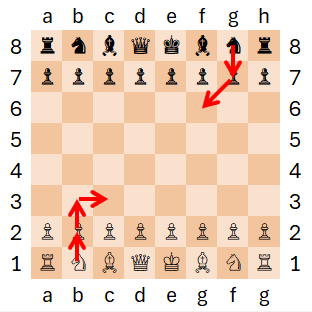
=Distance("B1", "C3")
Result: 3
In general, the behavior when the from_addresses and to_addresses are arrays makes intuitive sense. For example, you can do one-to-many or many-to-one or column-wise or row-wise or element-wise, but to do many-to-many you would need to set up a table with one array as a column and the other array as a row. Other combinations when array sizes don't match well will result in NA() errors in parts of the result. Note that you could also use COMBINATIONS to create arrays to use as inputs to Distance.
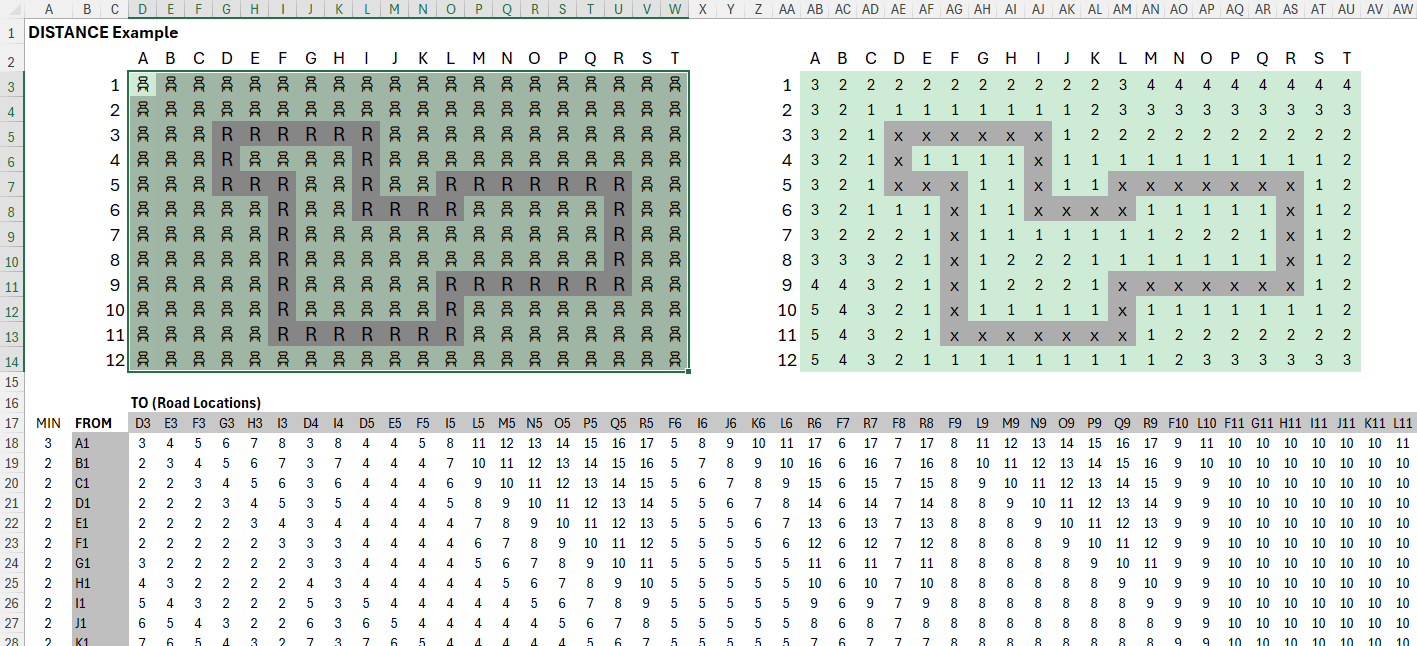
- Step 1: List FROM locations in a vertical array B18=GetAddressesByValue("🪑",map_array)
- Step 2: List TO locations in a horizontal array D17=TRANSPOSE(GetAddressesByValue("R",map_array))
- Step 3: Create the DISTANCE matrix =Distance(B18#,D17#,TRUE). This is the critical step. B18# is the vertical array of FROM addresses and D17# is the horizontal array of TO addresses.
- Step 4: Find the MIN distance for each of the rows
- Step 5: Put the MIN values into the map array to visualize the answer
Step 1 - D17: =GetAddressesByValue("🪑",map_array)
Step 2 - B18: =TRANSPOSE(GetAddressesByValue("R",map_array))
Step 3 - D18: =Distance(B18#,D17#,1).
Step 4 - A18: =MIN(D18:AW18)
Step 5 - AB3: =XLOOKUP(AB$2&$AA3,$B$18#,$A$18:$A$211,"x")
▼ Show Distance()
DistanceFrom()
=DistanceFrom(map_array, valid_value, [allow_diagonals], [from_locs], [return_as_array])
This is a LAMBDA implementation of the many-to-many Distance example shown above. The default result is a flattened table where the first column is the from_locs addresses and the second column are the minimum distances, but the result can also be an array if you leave from_locs blank.
This LAMBDA was useful for the MEWC 2025 "Seamstress Fast" case by designer Peter Scharl, which involved finding the distance from a stadium of seats to the stage at a concert.
=DistanceFrom(_track,"R",TRUE,,TRUE)
▼ Show DistanceFrom()
GetAdjAddresses()
=GetAdjAddresses(start_address, map_array, [valid_value], [mask])
This function is really meant purely for map games in Excel. Given a starting location such as "K8", it will return "All" of the valid adjacent locations or just the locations where the value within the map is equal to the valid_value parameter.
Update: I've added a [mask] parameter in place of the previous allow_diagonals option. Here are the allowed mask options:
- "all" - All 8 neighboring cells
- "ortho" - Left, Right, Up, Down
- "diag" - Upper Left, Upper Right, Lower Left, Lower Right
- "lr" - Left and Right
- "ud" - Up and Down
- Array - Can be an array of row|col offsets.
The array option allows you to use the MASK function to generate more types of masks.
Note that this function is using addresses relative to the map array, not worksheet cell addresses. So, it doesn't matter where the array is located within the worksheet.
=GetAdjAddresses("K8", map_array, "Road", "ortho")
Result:
   {"K7";
    "J8"}
This example shows that the function ignores values beyond the edge of the array.
=GetAdjAddresses("A1", C5:J10, "All")
Result:
   {"A2";
    "B1";
    "B2"}
▼ Show GetAdjAddresses()
ArrowEffect()
Many Excel Esport cases involve challenges where you are given an arrow and you need to move in a direction or retrieve information from a direction. ArrowEffect has a LOT of these unicode characters already built in with their associated row and column movement effects.
TIP: Use the parameterless form of the function, ArrowEffect() to output a table of all of the symbols and their row/col effects.
▼ Show ArrowEffect()
PathByDirection("B7",{"⭧","🡦","◀"},{3,4,5},...)
=PathByDirection(start_address, directions, [num], [return_path], [include_start], [map_range], [use_abs_ref], [wall_effect], [return_map_values])
This is one of those "Made for Excel Esports" lambdas that is heavy on the inputs but quite powerful if you know how to use it. It has the arrow effects built in. I've used it in a lot more places than just maps. It works directly with text-based addresses like the other address functions but has mostly its own built-in lambdas. It is volatile and not very computationally efficient, but it can make some tasks seem trivial that otherwise might be complicated.
▼ Show PathByDirection()
PathViewable("B7",{"⭧","🡦","◀"},15,map_range,"W")
=PathByDirection(start_address, directions, distance, map_range, [stop_values])
This lambda was inspired by Excel Esport cases by Harry Seiders. It uses PathByDirection to return all addresses that are viewable from the start address within a certain distance, stopping at the boundary of the map_range and at any walls defined within the [stop_values] array. If stop_values is blank or omitted, then "viewable" cells are those that are blank="" as viewed from the start_address.
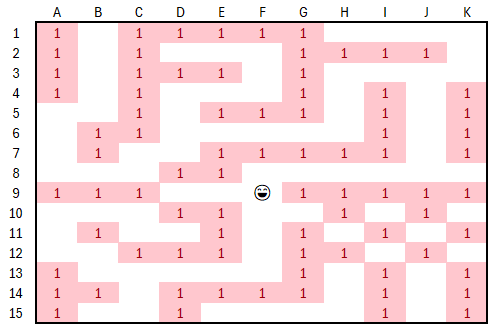
In this example, the direction are only up, down, left, and right. Smiley is at address F9. We'll allow a distance of 15 (based on the maximum size of the maze).
=PathViewable("F9", {"U";"D";"L";"R"}, 15, A1:K15, {1;"W";"S"})

Result: {"F9";"F8";"F10";"F11";"F12";"F13";"E9";"D9"}
▼ Show PathViewable()
Acknowledgements
Many of the ideas for these functions came as a result of seeing Excel Esport competitors use something similar, but the function code was developed by me and AI (AI for the formatting and commenting). These functions have been evolving as I work through various cases.

Follow Us On ...