Employee Vacation Accrual Template
How much vacation or sick leave have you accrued? How many vacation days will you have 3 months from now? This employee vacation accrual and tracking template helps you answer these questions. If you are an employer, you can track the benefits accrued for multiple employees, by making a copy of the worksheet for each employee.
The employee vacation accrual and tracking template came about due to a request from someone working in human resources at a law firm. Since then, I have not only used it in my own business, but have continued to update it to handle almost every type of benefit accrual system. Most large companies have their own leave management systems in place, but if you have a small business, this spreadsheet may be just what you need.
Employee Vacation Tracking Template
for Excel, OpenOffice, and Google Sheets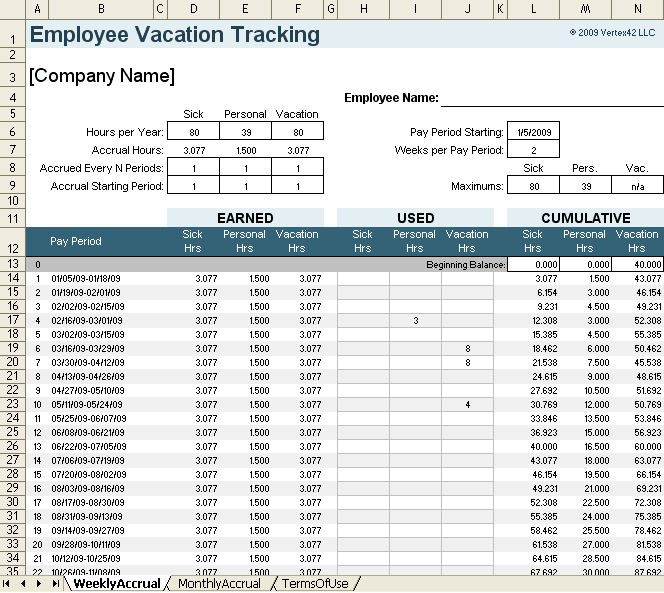


via ClickBank.net
Watch the demo video below!
License: Company Use (not for distribution or resale)
60-DAY MONEY-BACK Guarantee
 Try it out! If you don't think it was worth the cost, we will refund your purchase.
As of 3/25/2014: After purchasing the template, in addition to downloading the Excel version, you will get the link to access and make a copy of our new Google Sheets version. It looks and works just like the Excel version.
Description
"My wife's law firm was looking for something to better track accrued vacation time and this template popped up at the top of Google. It's easy to use and we spent less than 30 minutes customizing it to our needs. Regardless of whether you have 5 or 50 employees, this simple spreadsheet is all you'll need to manage your in-house vacation benefit tracking!" - MediaWyse
"I use this template and the payroll register in my business for tracking employee benefits and haven't needed anything else." - Jon Wittwer
This vacation accrual spreadsheet tracks vacation, sick leave and personal leave. It can handle all of the most common accrual periods including monthly, semi-monthly, weekly, or bi-weekly.
The workbook contains two worksheets: one for weekly/biweekly accrual and the other for monthly/semi-monthly accrual (see the two screenshots above). Note that "semi-monthly" means twice per month and "bi-weekly" means every two weeks.
New in Version 1.4: An HourlyAccrual worksheet was added that calculates vacation earned based on hours worked. See screenshot #3.
"No installation, no macros - just a simple spreadsheet"
How to Use this Vacation Accrual Template
Step 1: Choose either the Weekly, Monthly, or Hourly Accrual Worksheet
If your company uses daily vacation accrual, this spreadsheet may not work for you. It is set up for weekly, semi-weekly, monthly, or semi-monthly accrual periods.
If you are using a semi-monthly accrual period (twice per month), use the Monthly Accrual worksheet and change the Pay Period to Semi-Monthly.
The new hourly accrual worksheet allows you to enter the pay period date and the number of work hours. The benefits accrued are then calculated by multiplying the accrual rates by the number of work hours.
Step 2: Enter Total Hours Earned per Year
I would assume that your company's benefits policy states the number of hours of vacation and other benefits an employee can earn each year. The accrual rate is also shown in the worksheets, so if necessary you can manually override the formulas in those cells to enter specific accrual rates.
Step 3: Define How Benefits are Accrued
Besides the obvious Company Name and Employee Name fields, there are a few other values you'll need to enter.
Weekly Accrual worksheet:
- Pay Period Starting: Enter the date of the start of the first pay period (normally the start of your fiscal year, but for a new employee it may be mid-year).
- Weeks Per Pay Period: For bi-weekly pay periods, enter a 2.
- Accrued Every N Periods & Accrual Starting Period: If the employee vacation accrual period is identical to the pay period, then these values should probably all be 1 (one). However, if your policy states that employee vacation is accrued every 4 weeks, but you have a bi-weekly pay period, you'll need to modify these values.
Monthly Accrual worksheet: This one is pretty simple. Just enter the date of the start of your fiscal year and choose the pay period.
Hourly Accrual worksheet: In this version, you enter rates representing how many vacation hours are earned for each hour of work.
Step 4: Enter Maximum Limits if Applicable
If your policy specifies maximum limits for vacation, sick leave, or personal leave, enter the hour limits in the "Maximum" fields located above the CUMULATIVE columns. The formulas in the EARNED columns are set up to ensure that the balance never exceeds the maximum number of hours. If there are no limits, just leave the Maximum fields blank or enter "n/a".
Step 5: Update Vacation Carry-Over or Starting Balances
This spreadsheet is normally only valid for a single fiscal year because there is usually a limit to how much sick leave, personal leave, or vacation that can be carried over to the next year.
So, at the beginning of the next year, just make a copy of the worksheet and change the beginning balance to reflect the amount carried-over from the previous year.
Vacation Tracking and Leave Accrual for New Employees
Contracts for new employees usually state how much sick leave or vacation the employee starts with. Also, some leave might not start to accrue for 6 months or a year or whatever. To handle these cases, you can just delete the formulas in the Earned columns for the periods where the benefits should not accrue.
Variable Accrual Rates
If your company has a policy in which the amount of vacation or other benefits earned increases based on the time the employee has been with the company, I'd recommend one of the following approaches:
- Start a new worksheet and adjust the carry over balance and accrual rates each time the accrual rates change.
- Delete the formulas in the EARNED columns and enter the accrued amounts manually as needed. (Not an automated approach, but it gives a lot more flexibility)
Non-Standard Accrual
If the options in this spreadsheet for defining how the benefits are accrued do not work for your company, you have two options: (1) You can delete all of the formulas in the EARNED column and enter the hours accrued each pay period, or enter amounts only for the pay periods when the benefits are accrued. (2) You can send us an email and describe what you need and we'll see if there is another solution.
Example Policy Statements
If you are a new employer, you will probably want to add a statement in your employee agreement or handbook to indicate how vacation, sick leave, and/or personal leave is accrued. The example below shows how to describe the vacation accrual where there is a maximum:
"... Vacation time will accrue at a rate of 4 hours every two weeks not to exceed 120 hours, starting with a balance of 40 hours on the Hire Date...."
Other Questions
Background Color: The spreadsheet uses conditional formatting to highlight every other row in the accrual table. If you need to manually change the background color, you'll need to remove the conditional formatting first.
Adding/Inserting/Deleting Rows: The vacation accrual formulas are set up to allow you to easily insert or delete rows. You can also extend the accrual table by copying the last row down however many rows you need to. If you do that, you'll need to redefine the Print Area by going to View > Page Break Preview.
Timesheet Templates
- Excel Timesheet - Basic weekly or biweekly timesheet template.
- Timesheet Template with Breaks - Track your clock-in and clock-out times. Weekly or biweekly.
- Time Card / Project Timesheet (weekly) - Hours totaled and grouped by project.