Personal Monthly Budget
Download our free monthly budget spreadsheet and get your personal finances under control. Compare your budget and actual spending on a monthly basis. Also try our yearly personal budget to make a budget for an entire year. If you have a family, try our family budget planner for a more detailed set of budget categories.
This spreadsheet helps you compare your monthly budget to your actual expenditures, and can be printed on a single page in portrait orientation. The difference between your budget and actual spending is calculated and formatted to make it easy to find out where you may be overspending.
Personal Monthly Budget Spreadsheet
for Excel, OpenOffice, and Google Sheets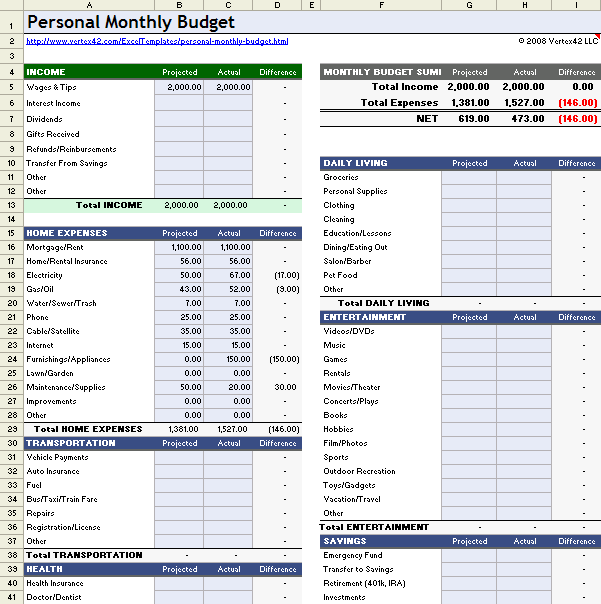
Download
⤓ Excel (.xlsx)Other Versions
License: Private Use (not for distribution or resale)
Author: Jon Wittwer
Description
To use this template, just fill in numbers that are highlighted with a light-blue background (the Budget and Actual columns). Some numbers are included in the Home Expenses category as an example, but you'll want to replace those numbers with your own.
The purpose of this type of budget worksheet is to compare your monthly budget with your actual income and expenses. You record your desired budget for each category in the "Budget" column. This represents your goal - you're trying to keep from spending more than this amount. At the end of the month, you record in the "Actual" column how much you really spent during the month.
For a more detailed set of budget categories, see the Household Budget worksheet. See our articles Make a Budget and 5 Basic Budgeting Tips if you are just getting started or new to budgeting.
Using the Personal Monthly Budget Template
The calculations in the "Difference" column are set up so that negative numbers are bad. The spreadsheet uses the accounting format where negative numbers are in parenthesis like (115.00), and conditional formatting is used to make the negative numbers red - red means bad in this case. So, if you spend more than you budgeted for, the value in the Difference column will be red - to help it stand out as a warning.
The Monthly Budget Summary table in the upper right of the worksheet totals up all your income and expenses and calculates your Net as Income minus Expenses. If your Net is negative, that means you have overspent your monthly budget.
Adding or Removing categories: You need to be careful when adding or removing categories, to avoid messing up the formulas used for calculating the totals. After making a change, you should check the formulas to make sure they are still correct.
More Budget Spreadsheets
- Money Manger - A more advanced budget management tool for Excel
- Personal Budget Spreadsheet The 12-month version of the above spreadsheet.
- Household Budget Spreadsheet (monthly) - More detailed and includes child expenses.
- Family Budget Planner A yearly budget planner, with the same categories as the household budget spreadsheet.
- Home Budget - Our original selection of home budget worksheets.

 Make a Budget