Free Money Management Template
Are you looking for free money management software? It has long been my goal to create a simple, macro-free, money management spreadsheet that provides the same functionality as basic budgeting and money management software. A simple spreadsheet will never do everything that dedicated software can do, but the new Vertex42® Money Management Template comes amazingly close.
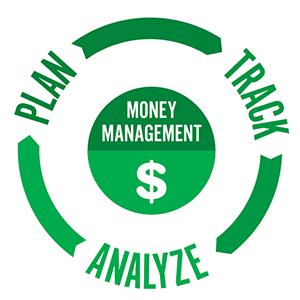
Basic money management consists of 3 cyclical steps: PLAN, TRACK and ANALYZE. The money manager spreadsheet evolved from the combination of my budget planner, checkbook register, and monthly budget templates. These 3 tools together provide a way to Plan, Track and Analyze your income and spending.
As a preliminary caution, you should be comfortable using a spreadsheet and understand that spreadsheets are somewhat error-prone. Even if the spreadsheet is completely free of errors at the time you download it, there is no guarantee that you won't accidentally introduce errors as you edit it. With that said, download and enjoy!.
Money Management Template 2.1
for Excel and Google Sheets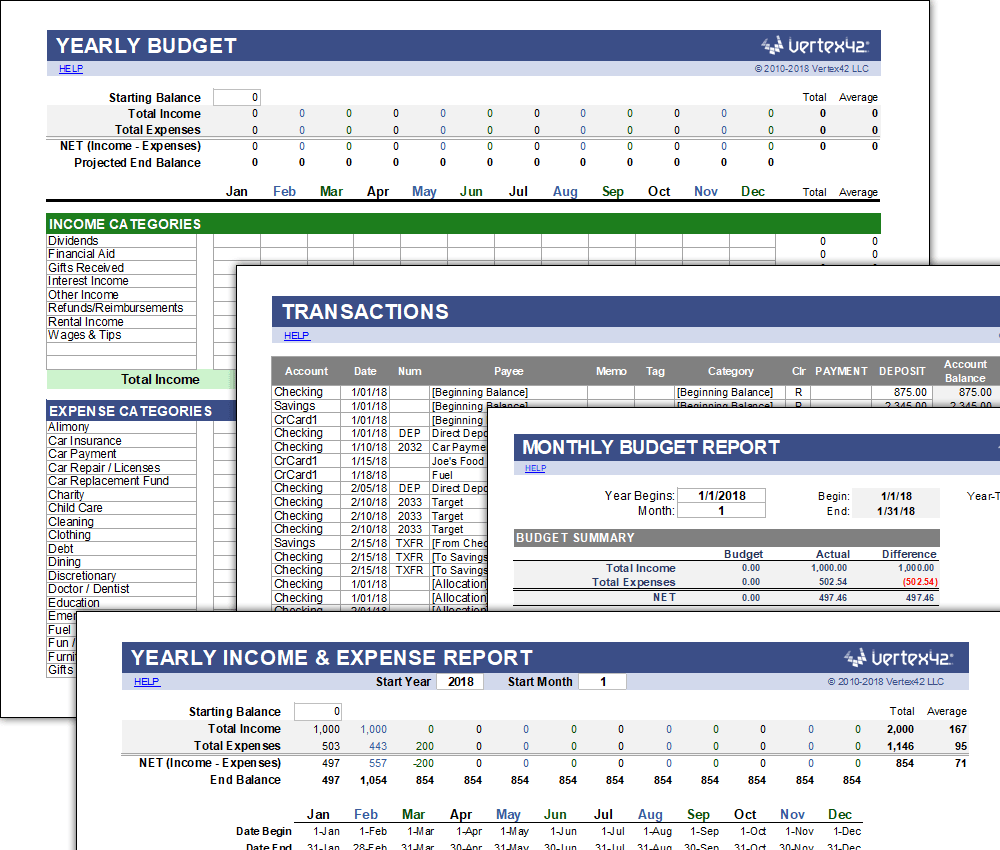
Download
Over 250,000 downloads!
⤓ Excel (.xlsx)⤓ Google Sheets
License: Personal Use
(not for distribution or resale)
Description
This new version has all of the features of the original money manager below, including monthly and yearly reports. However, it is a LOT easier to customize budget categories. It was designed to be something simple for students to begin using as they leave home and start having to track their own finances.
Update 6/4/2019 - I have added a new Weekly budget report worksheet. This worksheet lets you define a separate weekly or biweekly budget and will compare your budget to your actual spending. The main budget worksheet is still monthly, but now you have both options.
Update 8/31/2019 - To allow more categories, I have added 50 expense and 20 income categories, but hid those rows by default. So, if you need more categories, unhide the hidden rows.
Money Management Template
for Excel and OpenOffice
Download
Over 750,000 downloads!
⤓ DownloadLicense: Personal Use (not for distribution or resale)
Other Versions
Description
Both this older version and the newer version can be used as a complete money management system. With a single spreadsheet you can Plan, Track, and Analyze your personal or family spending.
- Create a Yearly Budget to make future projections, handle variable income, plan for irregular expenses (non-monthly), and budget variable expenses like seasonal electricity or water bills.

- Record Transactions for multiple accounts all in a single worksheet. Include your Credit Card account(s), Checking account(s), Savings account(s), and even an account to represent your Cash, Purse, or Wallet.
- Balance Your Checkbook - the Transaction history table includes a "Cleared Balance" that makes it easy to compare to your bank statement(s). Use the reconcile (R) column in the table to enter cleared "c" and reconciled "R" transactions. You can enter split transactions and transfers between accounts. Use the built-in Excel autofiltering to display transactions for a single account or all accounts.

- Track Your Monthly Spending using the monthly budget report which includes graphs, compares budget vs. actual amounts, and is updated automatically as you enter transactions. Just change the Year and Month to view the report for a different month.
- Track Your Yearly Spending [Excel 2010 version only] [Update 9/2/2014] - Due to frequent requests for a yearly report, I have added a new worksheet that calculates an Income & Expense Report for an entire year grouped by month. This may be helpful for creating the following year's budget.
We've created a Weekly Budget template that is based on the money manager. It includes the transactions and the weekly report all on one worksheet.
10/10/2016 Update (XLSX version only): A separate "Accounts" worksheet was added for editing the list of accounts and summarizing the balances in each account. A new "Tags" column was added to the Transactions worksheet to let you add your own unique tags as needed. For example, tags would allow you to filter or search for specific expenses that might cross over multiple categories, such as a #CAR1 or #CAR2 tag for tracking expenses associated with a specific vehicle.
5/16/2017 Update (XLSX version only): Added a new Goals worksheet that you can use for tracking the balance of various savings and expense funds.
How to Use the Money Management Template
Introducing the Money Management Template Dynamic Drop-Down Lists for Dates and Check Numbers
I've included a detailed set of instructions inside the workbook itself. Please read through those instructions. They contain very important tips, guidelines, and examples.

Customizing the Budget Categories
The new version of the money manager is easier to customize, but many people still prefer the original version because it groups the expenses into separate categories. The most complicated part of using the old version is customizing the budget categories. Luckily, you only need to do this once with maybe a bit of tweaking each year. Essentially, you just need to make sure that the categories are exactly the same in all worksheets.
Video Tutorial (Customizing Budget Categories)
Watch On YouTube.com
What you need to watch out for: If you assign a transaction to a category that is not included in the Budget or Report worksheets, the expense won't show up in your reports and you'll think you have more money than you really do. I've added conditional formatting to help prevent these types of mistakes, but the spreadsheet is definitely not error-proof. The conditional formatting just highlights the categories not within the main list.
I've tried very hard to include a comprehensive set of income and expense categories, so if customizing the categories is too scary, just try to use the default list.
Creating your Yearly Budget
I intend to write more on this subject in the future. For now, you can learn about creating a budget in almost any personal finance book, reading online blog articles on budgeting, etc. See the article How to Make a Budget and read through these 5 Budgeting Tips.
Recording Transactions
The second most difficult part of using the money management template is learning to enter transactions into the Transaction worksheet correctly and efficiently. If you have a good understanding of how to copy, insert, and delete rows, it should be a piece of cake. It is very important that you always copy entire rows (instead of inserting blank rows) so that you preserve the formatting, data validation, and formulas that are both visible and contained in hidden columns.
For recurring bills, you can copy the rows for older transactions, then insert the copied rows and change the dates and amounts. You can also create a subset of rows to use for copying/pasting with the amounts left blank (so that these template rows don't affect the account balances).
Can I use Autofiltering? Yes. First select the entire transactions table and then turn on Autofilter. You may find it convenient to use filtering to display transactions for a single Account at a time when you are reconciling.
Can I import transactions from my bank? Unfortunately, no. The money management template is not quite that fancy. I also have no plans in the future to add the ability to automatically import transactions from your bank or other financial institution. There is no online connectivity built into the money manager. If you want that kind of functionality, you may want to use some other dedicated budget software.
Creating Virtual Sub-Accounts to Track Goals
If you are saving up for a vacation, car purchase, down payment, or some other future goal you may want to keep track of how much money in your savings account is allocated to those specific goals.
One of the simple ways to do that is to create something called a "Virtual Sub-Account" which means that you aren't actually creating a real sub-account with your bank. Instead, you create an account called "Vacation" or "Car" in the Accounts tab of the money management template. You can indent the description or add a note to the right of the table to remind you that it is a sub-account.
Although in real life you would be transferring money from your checking account to your main savings account, in the spreadsheet you record these savings allocations as transfers to the specific sub-accounts.
The tricky part is that when you are reconciling your spreadsheet with your bank statement, you need to remember that the total balance shown on the statement is the sum of the general account plus the sub-accounts.
Tracking Your Monthly Progress
A very important part of good money management is keeping track of how your current spending compares to your budget. You might check your budget status on a weekly or even daily basis, but you should at least manage your money on a monthly basis.
Use the Report worksheet to compare your budget to your actual spending throughout the month. You can change the month by simply entering the month number (1 for January, 2 for February, etc).
Starting a New File Each Year
The money manager is designed for showing yearly reports, so I typically start a new file at the beginning of each year, saving the old file with my previous year's tax documents.
For the new year, you can delete the old transactions then add rows at the top of the transactions table to list the carry-over balances for each account.
Tip: Just like with recurring payments, you may want to save a subset of sample transactions so that you can remember what categories to use for common transactions. For the sample transactions, leave the amounts blank so that they don't affect the account balances.


 Make a Budget