
Excel allows you to create custom functions using VBA, called "User Defined Functions" (UDFs) that can be used the same way you would use SUM() or other built-in Excel functions. They can be especially useful for advanced mathematics or special text manipulation or date calculations prior to 1900. Many Excel add-ins provide large collections of specialized functions.
This article will help you get started creating user defined functions with a few useful examples.
This Page (contents):
IMPORTANT! The new LAMBDA Function, available in Microsoft 365, allows you to turn complicated worksheet formulas into custom reusable functions without VBA. Check out Vertex42's new LAMBDA Library to learn how to create and use custom functions.
Watch the Video
How to Create a Custom User Defined Function
- Open a new Excel workbook.
- Get into VBA (Press Alt+F11)
- Insert a new module (Insert > Module)
- Copy and Paste the Excel user defined function examples
- Get out of VBA (Press Alt+Q)
- Use the functions - They will appear in the Paste Function dialog box (Shift+F3) under the "User Defined" category
If you want to use a UDF in more than one workbook, you can save your functions to your personal.xlsb workbook or save them in your own custom add-in. To create an add-in, save your excel file that contains your VBA functions as an add-in file (.xla for Excel 2003 or .xlam for Excel 2007+). Then load the add-in (Tools > Add-Ins... for Excel 2003 or Developer > Excel Add-Ins for Excel 2010+).
Warning! Be careful about using custom functions in spreadsheets that you need to share with others. If they don't have your add-in, the functions will not work when they use the spreadsheet.
Benefits of User Defined Excel Functions
- Create a complex or custom math function.
- Simplify formulas that would otherwise be extremely long "mega formulas".
- Diagnostics such as checking cell formats.
- Custom text manipulation.
- Advanced array formulas and matrix functions.
- Date calculations prior to 1900 using the built-in VBA date functions.
Limitations of UDF's
- Cannot "record" an Excel UDF like you can an Excel macro.
- More limited than regular VBA macros. UDF's cannot alter the structure or format of a worksheet or cell.
- If you call another function or macro from a UDF, the other macro is under the same limitations as the UDF.
- Cannot place a value in a cell other than the cell (or range) containing the formula. In other words, UDF's are meant to be used as "formulas", not necessarily "macros".
- Excel user defined functions in VBA are usually much slower than functions compiled in C++ or FORTRAN.
- Often difficult to track errors.
- If you create an add-in containing your UDF's, you may forget that you have used a custom function, making the file less sharable.
- Adding user defined functions to your workbook will trigger the "macro" flag (a security issue: Tools > Macros > Security...).
User Defined Function Examples
To see the following examples in action, download the file below. This file contains the VBA custom functions, so after opening it you will need to enable macros.
Download the Example File (CustomFunctions.xlsm)
Example #1: Get the Address of a Hyperlink
The following example can be useful when extracting hyperlinks from tables of links that have been copied into Excel, when doing post-processing on Excel web queries, or getting the email address from a list of "mailto:" hyperlinks.
This function is also an example of how to use an optional Excel UDF argument. The syntax for this custom Excel function is:
=LinkAddress(cell,[default_value])
To see an example of how to work with optional arguments, look up the IsMissing command in Excel's VBA help files (F1).
Function LinkAddress(cell As range, _
                     Optional default_value As Variant)
  'Lists the Hyperlink Address for a Given Cell
  'If cell does not contain a hyperlink, return default_value
  If (cell.range("A1").Hyperlinks.Count <> 1) Then
      LinkAddress = default_value
  Else
      LinkAddress = cell.range("A1").Hyperlinks(1).Address
  End If
End Function
Example #2: Extract the Nth Element From a String
This example shows how to take advantage of some functions available in VBA to do some slick text manipulation. What if you had a bunch of telephone numbers in the following format: 1-800-999-9999 and you wanted to pull out just the 3-digit prefix?
This UDF takes as arguments the text string, the number of the element you want to grab (n), and the delimiter as a string (eg. "-"). The syntax for this example user defined function in Excel is:
=GetElement(text,n,delimiter)
Example: If B3 contains "1-800-444-3333", and cell C3 contains the formula, =GetElement(B3,3,"-"), C3 will then equal "444". To turn the "444" into a number, you would use =VALUE(GetElement(B3,3,"-")).
Function GetElement(text As Variant, n As Integer, _
                    delimiter As String) As String
    GetElement = Split(text, delimiter)(n - 1)
End Function
With the new TEXTSPLIT function in Microsoft 365, this formula is much easier. TEXTSPLIT can split a string into an array and then INDEX can pick the nth value.
=INDEX(TEXTSPLIT(text,,delimiter),n)
=INDEX(TEXTSPLIT("1-800-444-3333",,"-"),3)
=444
Example #3: Return the name of a month
The following function is based on the built-in visual basic MonthName() function and returns the full name of the month given the month number. If the second argument is TRUE, it will return the abbreviation.
=VBA_MonthName(month,boolean_abbreviate)
Example: =VBA_MonthName(3) will return "March" and =VBA_MonthName(3,TRUE) will return "Mar."
Function VBA_MonthName(themonth As Long, _
   		Optional abbreviate As Boolean) As Variant
    VBA_MonthName = MonthName(themonth, abbreviate)
End Function
Example #4: Calculate Age for Years Prior to 1900
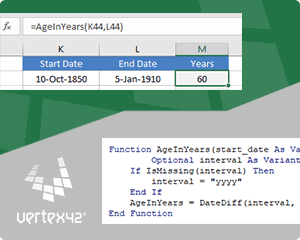
The Excel function DATEDIF(start_date,end_date,"y") is a very simple way to calculate the age of a person if the dates are after 1/1/1900. The VBA date functions like Year(), Month(), Day(), DateSerial(), DateValue() are able to handle all the Gregorian dates, so custom functions based on the VBA functions can allow you to work with dates prior to 1900. The function below is designed to work like DATEDIF(start_date,end_date,"y") as long as end_date >= start_date.
=AgeInYears(start_date,end_date)
Example: =AgeInYears("10-Oct-1850","5-Jan-1910") returns the value 59.
Function AgeInYears(start_date As Variant, end_date As Variant) As Variant
    AgeInYears = Year(end_date) - Year(start_date) - _
    Abs(DateSerial(Year(end_date), Month(start_date), _
    Day(start_date)) > DateValue(end_date))
End Function
More Custom Excel Function Examples
For an excellent explanation of pretty much everything you need to know to create your own custom Excel function, I would recommend Excel 2016 Formulas. The book provides many good user defined function examples, so if you like to learn by example, it is a great resource.
- Rounding Significant Figures in Excel :: Shows how to return #NUM and #N/A error values.
- UDF Examples - www.ozgrid.com - Provides many examples of user defined functions, including random numbers, hyperlinks, count sum, sort by colors, etc.
- Build an Excel Add-In - http://www.fontstuff.com/vba/vbatut03.htm - An excellent tutorial that takes you through building an add-in for a custom excel function.
Note: I originally published most of this article in 2004, but I've updated it significantly and included other examples, as well as the download file.
Previous Post: How to Make a Dynamic Geographic Heat Map in Excel
Next Post: Use DATEDIF to Calculate Age in Excel


Comments
I’ve modified Example #4 so that the function returns the same values as the DATEDIF function when using dates after 1900. An interesting thing I learned when converting my Excel formula into the VBA version is that the default numeric value for TRUE in VBA is -1. In Excel, the numeric value for TRUE is 1. That is why the function uses Abs().
hello,
I created a custom formula but when I share the file with my colleagues it always returns an error when they open it even though they also have the custom formula installed in their excel.
how can I solve this? The reference to the location of the formula keeps changing
Hmmmm … If the entire custom formula is included within the VBA code of the file you are sharing, then they should only need to enable macros after opening the file. If the formula is part of an add-in, they will need to have the add-in activated. So, the VBA code needs to be either in the file you are sharing, in an add-in that they have also activated, or within their own personal.xlsb workbook.
is there any way we can use a FORMULA inside UDF
(E.g)
Function Age(AgeingDate) As Date
Age= “=today()” – AgeingDate
End Function.
I need a ageing of a date by juz clicking the closing date column.
@Jameel, Yes. You can use the WorksheetFunction Object. See the help on microsoft.com: https://msdn.microsoft.com/en-us/vba/excel-vba/articles/worksheetfunction-object-excel
ive tried new function..can you help me
Function Decision(number)
If (Decision > 0.4) Then Decision = retain
If (Decision > 0.2) Then Decision = revise
Else:
Decision() = reject
End If
End Function
@anon … you may want to contact a consultant to get help with the coding of your function (ExcelRescue.net)
Try This:
Function Decision(number)
If (number > 0.4) Then
Decision = “retain”
ElseIf (number > 0.2) Then
Decision = “revise”
Else: Decision = “reject”
End If
End Function
Hello,
I’ve been trying to troubleshoot what’s wrong with my function for a while now and I can’t figure it out. This is what I’ve got:
Function CJEXTRTHK(plate_profile As Variant) As String
CJEXTRTHK = IfError(Left(plate_profile, Search(“X”, plate_profile) – 1), “”)
End Function
The formula I’m making the function out of is suppose to take a steel plate profile like PL3/8″X5 3/16″ and give me PL3/8″ (anything before the X). When I try to use the function it keeps giving me the error “Sub, Function or Property not Defined: Error 35”. I checked this formula all over and I can’t figure out what’re wrong with it.
@Brandon, I’d recommend contacting ExcelRescue.net for a question like this, or perhaps an Excel/VBA forum.
Brandon, what you’re trying to do and what you’re thinking are actually different things ;) Excel’s in-built functions like Left and Search that you’re using in your VBA code are not actually exposed in the scope of your module. That’s why excel complains about Not Defined errors. Please look into Worksheet Functions and the WorkSheetFunction object in Excel’s VBA to access those functions in the proper context. This might help : https://docs.microsoft.com/en-us/office/vba/excel/concepts/events-worksheetfunctions-shapes/using-excel-worksheet-functions-in-visual-basic
Generate a unique value against duplicate for vlookup
Example ,
A B C D
1 Xx-100 Xx 100
2 Xx-100 Xx 100
I write below formula in a1 cell.
=b1&”-“&Countf($b$1:b1,b1)
Result =
1. Xx-100-1
2. Xx-100-2
But I want to write below udf
= MyUnque(b1)
Instead of =b1&”-“&countif($b$1:b1,b1)
@Tomal … Your formula will probably perform faster and be more efficient than a custom UDF. You could get a quote from an Excel consultant to help you, though.
plz write the vba codes of formula –if(and(date1=date2,(time_sec1+duration)>time_sec2),”con”,” “)
@Pavan … this may be a good question to ask a consultant to do for you, like ExcelRescue.net
I am trying to make a function that sums all numbers in a column next to someone’s name. That is, if “John Doe” is in the “name” column in rows 3, 7, 18, and 25, I will sum the values of the time column in rows 3, 7, 18, and 25. When I use this code in a macro for a dry run with a manual “repname” input, it works perfect, but this code always outputs zero. Where am I going wrong?
Function RepTime(repname As String) As Integer
Worksheets(“Calls”).Activate
numbercalls = ActiveSheet.UsedRange.Rows.Count
arraysize = numbercalls – 1
Dim repminutes As Integer
Dim repminutesarry() As Integer
ReDim repminutesarray(1 To arraysize) As Integer
For i = 2 To numbercalls
j = i – 1
If repname = Cells(i, 4).Value Then repminutesarray(j) = Cells(i, 3).Value
Next i
RepTime = WorksheetFunction.Sum(repminutesarray)
End Function
@Josh … I’d use either SUMIF or SUMIFS instead of a custom function.
Am trying to figured out if its possible to create a formula or code so i can apply to all rows when i type number 1 to transform automatically in 14 %, 2 in 28%…till 7 to 100% ?
I’m assuming you don’t want the more obvious solution of dividing by 7. So, if you want the value you enter to change within the cell that you enter it, you have two options: (a) number formatting or (b) vba. There isn’t a number format that I know of for changing numbers 1-7 to 14%-100%. For a VBA solution, you’ll need to get a quote from a consultant if you want something created for you. There is a third option that isn’t exactly what you’ve asked for, but you could use data validation to create a drop-down so that you can select 14%, 28%, … 100% from a drop-down list.