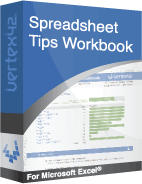
Vertex42 Spreadsheet Tips Workbook
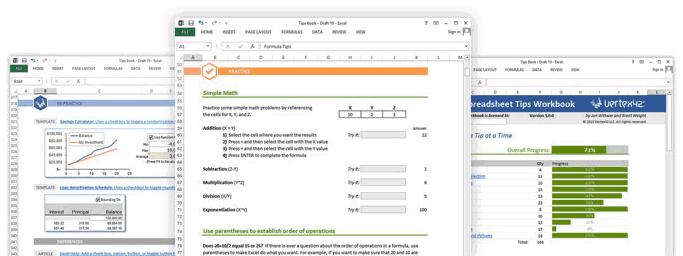
2. a booklet containing exercises that a student may work on directly within the booklet
Much better than just an ebook, the Vertex42® Spreadsheet Tips Workbook is a downloadable spreadsheet file for Microsoft Excel 2010, 2013 & 2016 that lets you learn and practice essential skills directly within Excel. The 100+ tips are mini tutorials that teach basic to advanced Excel skills, with examples taken from some of the most popular Excel templates on vertex42.com.
140+ Essential Excel Tips

Go from zero-to-awesome at your own pace. Simply open the workbook in Excel 2010, 2013 or 2016 and begin mastering:
- Crucial keyboard shortcuts
- Efficient data entry and navigation
- Powerful formulas
- Useful drawing tools
- Advanced formatting techniques
- Data analysis, including Pivot Tables
- Charts and graphs
Already have the basics mastered? No worries - more than half of the tips in the workbook cover intermediate and advanced Excel skills. Even experts will likely learn a thing or two.
Get the Free Trial!
Filename: TipsWorkbook_trial.xlsx
Take a test run! Download the free trial version. It includes about 19 of the 142 tips, just enough to help you see the value of the workbook.
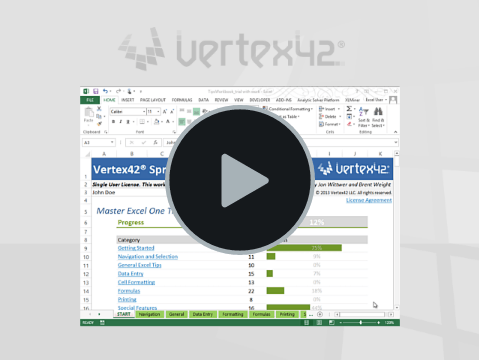
Watch the Demo Video
What Users are Saying About the Workbook
"For both the clean organization and the quick reference ability to a wide-range of concepts this tool quickly recovers the cost of the purchase. Add to that advanced tools (and super-effective instruction on them) that likely cuts in half the learning time? No-brainer. This is the best and fastest Excel instruction I've ever seen."
- Mike McBride
"Very easy to follow as you have the instructions alongside the exercise. So much easier than following a book."
- Intermediate user, using Excel 2013 for office work
"It's easy to use. It's visually appealing. The practice is good -- being able to immediately apply the tools you're teaching is good for retention."
- Advanced user, using Excel 2011(Mac) for engineering.
"It shows me what to do, then lets me do it myself."
- Brand new user, using Excel 2011(Mac) for office work
"It is intuitive and it is electronic so I am practicing as I go, real time!"
- Intermediate user, using Excel 2010 for financial analysis
"I was impressed by both the content and the layout of the workbook. In addition to learning great Excel tips, you'll be inspired to try some of Jon’s navigation and design ideas in your own files."
- Debra Dalgleish, Excel MVP, of Contextures.com
"I have been using the Spreadsheet Tips Workbook from Vertex42.com for little over a month now. I am a busy executive, with little time for training, but, great need to build my Excel skills to keep on the leading edge of a very diverse market. The self-paced, pick-up where you left off format is excellent and very effective. For years I have struggled thinking, 'there must be an easier way' while trying to complete a repetitive task. With the Tip Workbook I now have a tool where I can quickly find the solution, learn a new skill and apply it immediately giving me concrete skill improvement quickly efficiently."
- Jim Oschwald
Download the Spreadsheet Tips Workbook
- 142 Essential Excel tips
- 60-day money-back guarantee
- Immediate download
- Credit card, e-check, or PayPal
If you have any questions about whether to purchase this workbook, please download the free trial listed above.
The value you will get from these tips is far greater than the cost, but if you aren't sure about that, just try it out. You have 60 days to decide whether to request a refund - plenty of time to work through every single tip.
If you complete the workbook within the 60 days and don't think it was worth the equivalent of taking a $150 short course, let us know and we'll refund the full cost.
Train Your Entire Organization for just $99!
- Share the workbook with everyone in your organization!
- 60-day money-back guarantee
Who uses Excel in your company? Everyone? How awesome would it be if everybody on your team was proficient with Excel? What would you have to pay to give everybody in your organization extra Excel training? I get flyers in the mail all the time offering Excel training seminars for $80-$100 per person.
What if you could give everybody in your company expert Excel training for a TOTAL cost of only $99? That is what we are offering. For a limited amount of time, we are offering a SITE LICENSE of our Spreadsheet Tips Workbook for just $99. If you have 10, 50, 100, or even 1000 people working in your company, it doesn't matter. You can share the workbook with them all.
The only catch is that we ask that before you share the file with your organization, you save a copy with your organization's name (in the place that will be obvious when you open the file) so that people understand that it should only be shared within your organization.
Subscribe
- Get notified about our new blog articles and templates
- No spam, and your email will not be shared (see our privacy policy)
Release Notes
10/30/2013 - Site License Available for Purchase
7/30/2013 - Official release of the Spreadsheet Tips Workbook!